How to know when Claude Code is done on a Mac
You give Claude Code a task, switch to something else, and then keep alt-tabbing back to check on it. Here's how to make your Mac tell you instead.
The two moments that matter
A long Claude Code task has two moments when you need to look:
- It needs you. It wants permission to run a command or edit a file, and it sits there until you answer. Miss this and the task stalls for nothing.
- It's done. It finished its turn and is waiting for your next prompt.
Claude Code has a hook for each: Notification fires when it needs your permission or is waiting for input, and Stop fires when it finishes responding. Every option below is built on these two hooks.
Option 1: Claude Code's built-in alert
When Claude Code finishes or pauses for permission while you seem to be away from the terminal, it sends a notification on its own. In Ghostty and Kitty that becomes a macOS notification with no setup. In iTerm2, turn it on under Settings › Profiles › Terminal: check “Notification Center Alerts”, then click “Filter Alerts” and enable “Send escape sequence-generated alerts”.
In other terminals, such as Apple Terminal, Warp or the VS Code terminal, add this to ~/.claude/settings.json to ring the terminal bell instead:
{
  "preferredNotifChannel": "terminal_bell"
}
Free and quick, but a bell is easy to miss if your sound is off, and a banner doesn't say which project it's about.
Option 2: claude-done, a free hook that names the project
claude-done is a small open-source script I wrote (MIT, no dependencies). It adds Claude Code hooks that show which project finished, how long it took and the first line of Claude's reply, with a sound. When Claude needs your permission, it says which project is asking. Turns under 20 seconds stay silent.
brew install abdiraimov-otabek/tap/claude-done
claude-done install
claude-done test
install backs up ~/.claude/settings.json and keeps your own hooks; claude-done uninstall removes only its own. Limits: the alerts are ordinary macOS banners in the corner of the screen, and nothing shows what a session is doing while it works.
Or write the hooks yourself
The minimal version, if you'd rather not install anything: add hooks to ~/.claude/settings.json that play a sound when Claude Code finishes and show a notification when it needs you:
{
  "hooks": {
    "Stop": [
      { "hooks": [{ "type": "command", "command": "afplay /System/Library/Sounds/Glass.aiff" }] }
    ],
    "Notification": [
      { "hooks": [{ "type": "command", "command": "osascript -e 'display notification \"Claude Code needs you\" with title \"Claude Code\"'" }] }
    ]
  }
}
If the file already has a "hooks" section, merge these two events into it. Claude Code picks up the change on its own; run /hooks to check that both are there.
This version doesn't say which project needs you when you run several sessions, or how long a task ran; claude-done adds both.
Option 3: see it in the notch with Halo
I built this into Halo because I kept alt-tabbing to my terminal myself. Halo uses the same hooks, but shows the result where you're already looking: the top of the screen.
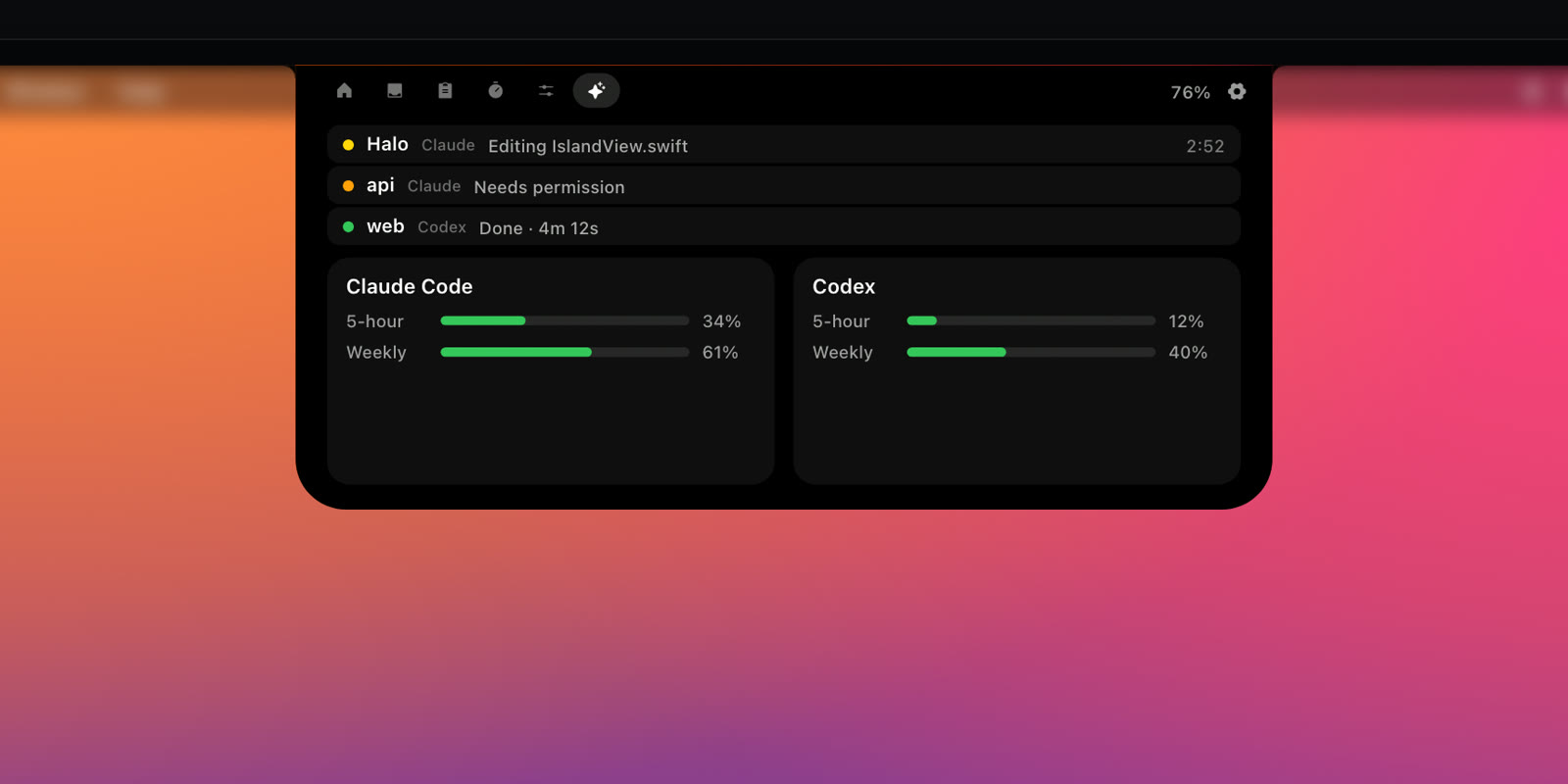
- Working: the notch shows the project and what Claude Code is doing, like Editing IslandView.swift, with a running timer.
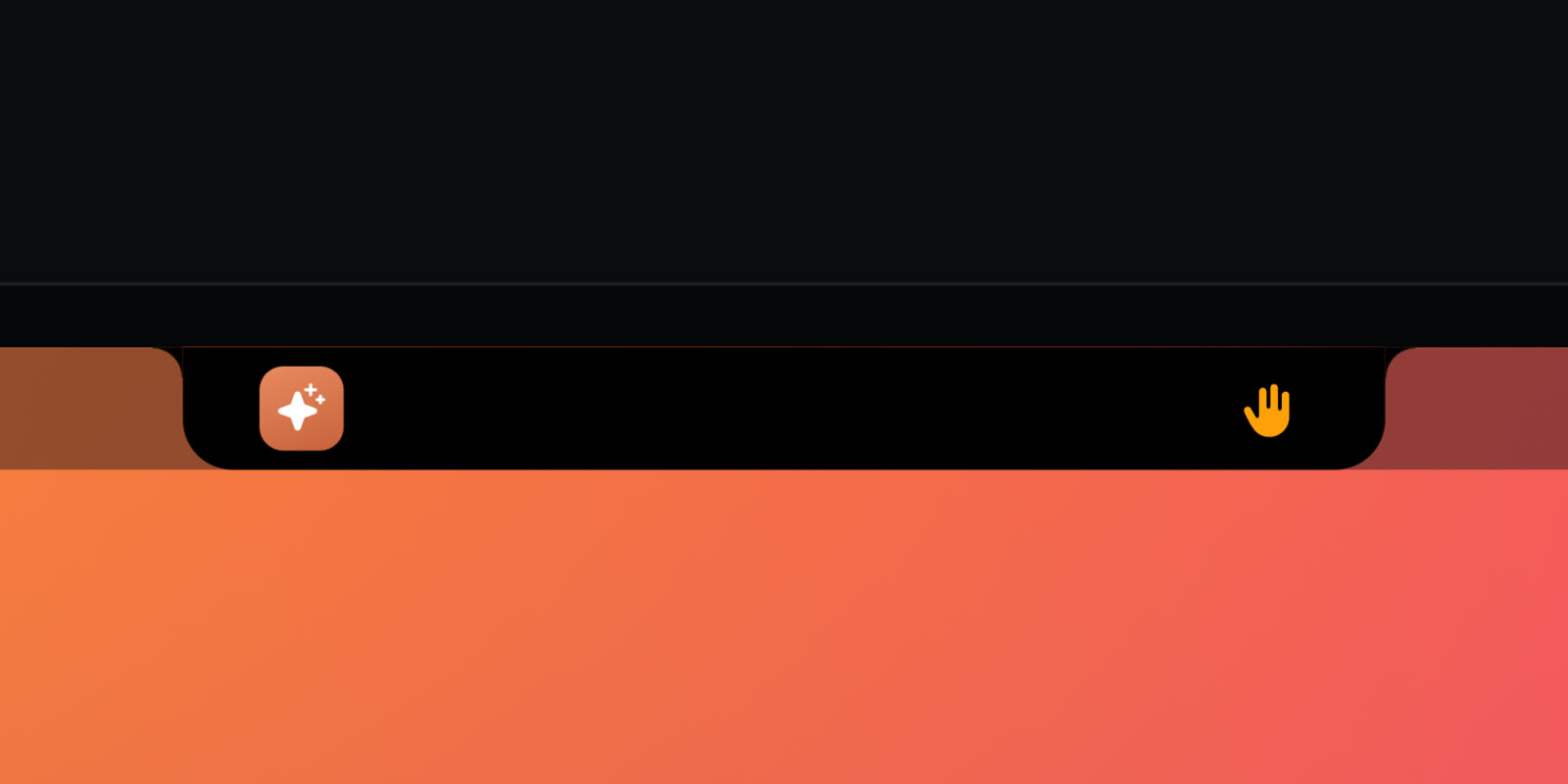
- Needs you: a raised hand appears in the notch and a soft “Ping” plays.
- Done: the notch shows Done · 4m 12s for a moment and plays “Glass”. Errors play a different sound.
- Buddy, a small face beside the notch, mirrors it: thinking while an agent works, looking right at you when it needs you, happy when it's done.
- Several sessions are listed by project in the Agents tab, the most urgent first. Codex sessions show up too, with no setup.
Setting it up
- Install Halo and open its Settings.
- In AI Agents, turn on Agents tab and usage limits and click Connect next to Claude Code.
- Make sure Agent status is on. Turn off Sound when an agent needs you or finishes if you only want the visual.
- Start a new Claude Code session. It appears in the notch on its first event.
Connecting backs up ~/.claude/settings.json first and adds Halo's hooks next to yours. Disconnecting removes only Halo's hooks. The hooks write short status events to a file on your Mac; nothing is sent anywhere.
Which one to pick
- One session now and then: the built-in alert is enough.
- Several sessions, free: claude-done, so each alert names the project and how long it ran.
- You like tinkering: write your own hook. You control every detail.
- Several sessions, or you run Claude Code all day: Halo, so you see which project needs you without leaving what you're doing.
Questions
Can Claude Code notify me when it's done?
Yes. Claude Code runs hooks at moments like Stop (it finished its turn) and Notification (it needs your permission or is waiting for input). A hook can play a sound, show a macOS notification, or tell an app like Halo to show the status in your notch.
Which hook fires when Claude Code needs permission?
The Notification hook. It fires when Claude Code asks to use a tool or has been waiting for your input. The Stop hook fires when it finishes responding.
Does this work with Codex too?
Halo shows Codex sessions with no setup: it reads Codex's own session files on your Mac. The hook recipes on this page are for Claude Code.
Does Halo send my code or prompts anywhere?
No. Claude Code's hooks write short status events to a file on your Mac and Halo reads them there. Nothing leaves the Mac.
Can I undo Halo's Claude Code connection?
Yes. Halo backs up ~/.claude/settings.json before connecting. Disconnecting removes only Halo's hooks and restores your original status line.
Try Halo
Dynamic Island for your Mac, notch or not. $9.99 one-time, no subscription.
Buy Halo